
Best Drawing Tablets for Digital Illustration
As an Amazon Associate, I earn from qualifying purchases. Some links may earn us a commission at no extra cost to you.
If you draw for hours, what matters most are pen feel (latency, pressure/tilt, palm rejection), screen quality (size, reflectivity, color), ergonomics, and the apps/drivers you depend on. I picked both “standalone” tablets and plug-in pen displays so you can match your workflow—not force it.
Top picks
Apple iPad Pro 13-inch (M4) — Best for most artists who want a standalone tablet
A portable, color-rich canvas with the best mobile art app ecosystem; pair it with Apple Pencil Pro for pro-level control.
Why it wins: 120 Hz tandem-OLED plus Pencil Pro’s squeeze/barrel-roll/hover make sketching feel immediate with minimal setup.

- WHY IPAD PRO — iPad Pro is the ultimate iPad experience in an impossibly thin and light design. Featuring the breakthrough Ultra Retina XDR display, outrageous performance from the M4 chip, superfast wireless connectivity,* and compatibility with Apple Pencil Pro.* Plus powerful productivity features in iPadOS.
- BUILT FOR APPLE INTELLIGENCE—Apple Intelligence is the personal intelligence system that helps you write, express yourself, and get things done effortlessly. With groundbreaking privacy protections, it gives you peace of mind that no one else can access your data—not even Apple.*
- 13-INCH ULTRA RETINA XDR DISPLAY — Ultra Retina XDR delivers extreme brightness and contrast and exceptional color accuracy and features advanced technologies like ProMotion, P3 wide color, and True Tone.* Plus a nano-texture display glass option is available in 1TB and 2TB configurations.
Pros
- 120 Hz display; excellent pen responsiveness
- Pencil Pro adds squeeze + barrel-roll + haptics
- Deep app library (Procreate, Clip Studio, Adobe)
- Thin/light; easy couch-to-desk device
Cons
- Pencil Pro sold separately
- iPadOS file handling can be limiting
- No built-in pen silo
Trade-offs / Who should skip
Need Photoshop/Blender plug-ins, calibrated multi-monitor, or color-critical pipelines? A pen display below fits better.
Scores: Performance 5/5 · Pen feel & latency 4.5/5 · Ease of Use 4.5/5 · Value 4/5
Xencelabs Pen Display 24 (4K) — Best for color-accurate studio setups (Photoshop/Illustrator/3D)
A 24-inch 4K pen display with wide-gamut color accuracy, 40 customizable quick keys, and two battery-free pens.
Why it wins: 99% Adobe RGB coverage, a 4K panel, and Xencelabs’ dual-pen kit give brush-to-pixel control for print, film, and color-critical pipelines.
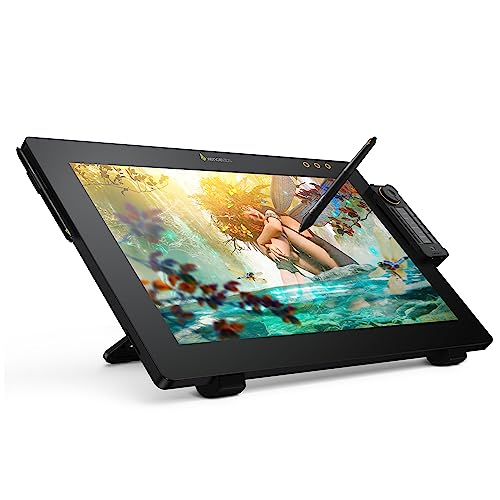
- Carefully Designed Pen Display: Features Exceptional glare reduction and superior clarity in brightly lit environments. The Super-AG Etching allows for users had to glide smoothly along the surface of the screen. With meticulously tuned and adjustable pressure curves and 3g initial activation force.
- Brilliant Color Performance: This 4K UHD IPS screen with resolution of up to 3840X2160 and 1.07 billion colors. This display offers Adobe RGB 99.43% (coverage), 96.11% coverage of DCI-P3, and is also Panton & SkinTone validated. Can be hardware calibrated with internal 2 calibration slots.
- 2 Battery-free Digital Pens: Comes with two battery free digital pens for different preferences. 3 Button Pen v2 + eraser and Thin Pen v2 + eraser. 8192 levels of pressure sensitivity, 5080LPI pen resolution, tilt recognition. Delivers a similar drawing feel to traditional media.
Pros
- 24″ 4K wide-gamut canvas
- 99% Adobe RGB for color-critical work
- Two battery-free pens included
- 40 customizable quick keys
Cons
- Premium price
- Stand/arm setup for best ergonomics
- Newer listing with fewer reviews
Trade-offs / Who should skip
If desk space or budget is tight, the big-screen value option below is easier to fit.
Scores: Performance 5/5 · Pen feel & latency 4.5/5 · Ease of Use 4/5 · Value 3.5/5
XP-Pen Artist 22R Pro — Best big-screen value
A 21.5-inch full-HD pen display with 120% sRGB color, full lamination, 20 shortcut keys and two red dials.
Why it wins: a big, exceptionally well-reviewed canvas with a battery-free stylus and a low price-per-inch, making it the value pick for a large drawing display.

- Improve Your Workflow: The XPPen Artist 22R Pro features two easy-to-control red dial wheels and 20 customizable shortcut keys on both sides, mapped to standard Photoshop shortcuts but adaptable for other software. This is especially beneficial for graphic designers, illustrators, and animators who need to switch tools frequently, enhancing workflow and productivity. The pen slot ensures quick access to your pen. Both left and right-handed users will find the design comfortable and accessible
- Pen for Precision: The PA2 drawing stylus offers 60° tilt and 8192 levels of pressure sensitivity, delivering smooth, natural strokes that rival traditional tools. Its ergonomic, spindle-shaped design ensures comfort during long drawing sessions. The stable nib and genuine 220 RPS report rate provide precise, consistent performance with no lag, ensuring immediate response to every stroke
- Vibrant Colors and Precision: The XPPen Artist 22R Pro features sRGB≧120%, Adobe RGB≧90%, and 88% NTSC color accuracy, along with 16.7 million colors, delivering accurate and vivid color reproduction and rich, detailed visuals. For photographers and video editors, this level of color accuracy is crucial for precise color grading and maintaining consistency across different projects
Pros
- Big 21.5″ full-laminated canvas
- 120% sRGB color
- 20 shortcut keys plus two dials
- Battery-free stylus; huge review base
Cons
- 1080p, not 4K
- No touch input
- Stand/arm may be extra
Trade-offs / Who should skip
If you need 4K or the tightest color validation, the studio display above leads.
Scores: Performance 4.5/5 · Pen feel & latency 4/5 · Ease of Use 4/5 · Value 4.5/5
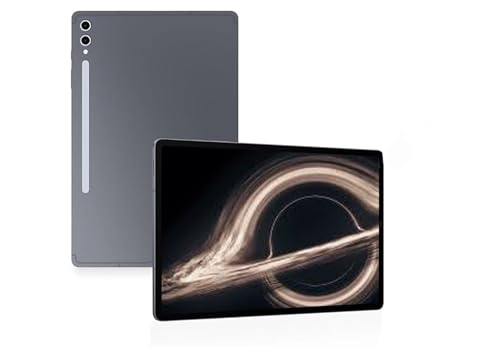
Samsung Galaxy Tab S10 Ultra (14.6″, Wi-Fi) — Best Android tablet for drawing
A huge 14.6″ Dynamic AMOLED 2X canvas; S Pen is in the box with low-latency inking and an anti-glare screen option.
Why it wins: Big screen + included S Pen deliver a ready-to-draw portable rig with strong Android art apps.
Pros
- 14.6″ canvas; 120 Hz AMOLED
- S Pen included; low latency
- Good multitasking for references
- Solid battery life for travel
Cons
- Hefty for handheld sketching
- Android app depth trails iPad
- Accessories vary by region
Trade-offs / Who should skip
If you live in Procreate, the iPad ecosystem still wins.
Scores: Performance 4.5/5 · Pen feel & latency 4/5 · Ease of Use 4/5 · Value 4/5
Wacom Intuos Pro (2025), Medium (PTK670K0A) — Best no-screen tablet for desk setups
The classic “look-up, draw-down” workflow with Wacom’s newest Pro Pen 3 and refined shortcuts.
Why it wins: Ultra-thin Bluetooth tablet with Pro Pen 3 customization and rock-solid drivers; pro-line warranty support.

- WACOM’S BEST PEN TECHNOLOGY: Pro Pen 3 offers amazing precision, 8192 pressure levels, tilt support & lag-free tracking for smooth, precise strokes; choose slim, straight or flared grip, adjust balance & button layout for precision and comfort
- DIAL INTO PRODUCTIVITY: Speed up and stay in the creative flow with 10 customizable tablet ExpressKeys & 2 mechanical dials conveniently located at the top of the tablet and close to your keyboard for efficiency
- DESIGNED FOR MODERN MONITORS: With a versatile 16:9 format perfect for multiple monitors and wide displays; medium size has a large active area with a small footprint 11.4 x 8.1” / 291 x 206 mm
Pros
- Pro Pen 3: swappable grips/weights
- ExpressKeys + dials streamline work
- Light, durable, easy to pack
- Works with Windows/macOS
Cons
- No built-in screen
- Learning curve for eye-hand coord
- Multi-touch is absent on this line
Trade-offs / Who should skip
If you need on-screen cursor alignment, choose a pen display instead.
Scores: Performance 4/5 · Pen feel & latency 4/5 · Ease of Use 4/5 · Value 4/5
Quick compare
- iPad Pro 13 (M4) — Best for most: elite OLED + Pencil Pro; iPadOS limits desktop plug-ins.
- Xencelabs Pen Display 24 (4K) — Best studio display: 24″ 4K, 99% Adobe RGB, dual pens; premium price.
- XP-Pen Artist 22R Pro — Best big-screen value: 21.5″ full-HD, 120% sRGB, 20 keys + dials; not 4K.
- Galaxy Tab S10 Ultra — Best Android: 14.6″ AMOLED + S Pen included; heavier than iPad.
- Wacom Intuos Pro (2025) — Best no-screen: latest Pro Pen 3; needs an external monitor, no touch.
Buying guide
Standalone tablet vs. pen display
- Want portability + couch sketching + Procreate? Choose a standalone tablet (iPad Pro + Pencil Pro).
- Need Photoshop/Illustrator, color-critical work, or 3D? Choose a pen display (Xencelabs Pen Display 24 for best color; XP-Pen Artist 22R Pro for big-screen value).
- Prefer a calibrated monitor and ergonomic desk setup? Go no-screen (Intuos Pro).
Screen size & texture
- 13–14″ excels for portability; 22–24″ shines for detailed painting and full tool palettes. Etched/anti-glare glass improves control and reduces reflections.
Color and refresh
- For print/film pipelines, target wide-gamut (Adobe RGB/DCI-P3); a 4K wide-gamut display like the Xencelabs 24 leads on color here.
Pens & features
- Apple Pencil Pro: squeeze, barrel-roll, hover, haptics.
- Wacom Pro Pen 3: customizable grips/weight/buttons; battery-free EMR.
Ports, power, cabling (pen displays)
- For stable 4K color work (and especially high refresh), confirm your GPU outputs and cabling match the display’s requirements (DisplayPort/HDMI per vendor guidance).
Warranty
- Pro-line pen displays and tablets typically include multi-year limited warranties in the US; details vary by model.
FAQs
Q: iPad-style tablet vs. Cintiq-style display—what feels better?
A: Both feel excellent. iPad Pro’s 120 Hz OLED plus Pencil Pro gestures make it frictionless for illustration on the go; a large 4K pen display like the Xencelabs 24 offers a calibrated desktop canvas for color-critical work.
Q: Do I need 4K?
A: At 22–24″, 4K keeps brushes/textures crisp and leaves room for palettes. At 13–14″, refresh rate and latency usually matter more than raw resolution.
Q: Will these work with Clip Studio Paint, Photoshop, etc.?
A: Yes—iPad has dedicated mobile versions; Windows/macOS pen displays and pen tablets use full desktop apps with mature drivers from Wacom, Huion, XP-Pen, and Xencelabs.
As an Amazon Associate, I earn from qualifying purchases.