
Best Drawing Tablets for Digital Illustration
As an Amazon Associate, I earn from qualifying purchases. Some links may earn us a commission at no extra cost to you.
If you draw for hours, what matters most are pen feel (latency, pressure/tilt, palm rejection), screen quality (size, reflectivity, color), ergonomics, and the apps/drivers you depend on. I picked both “standalone” tablets and plug-in pen displays so you can match your workflow—not force it.
Top picks
Apple iPad Pro 13-inch (M4) — Best for most artists who want a standalone tablet
A portable, color-rich canvas with the best mobile art app ecosystem; pair it with Apple Pencil Pro for pro-level control.
Why it wins: 120 Hz tandem-OLED plus Pencil Pro’s squeeze/barrel-roll/hover make sketching feel immediate with minimal setup.

- WHY IPAD PRO — iPad Pro is the ultimate iPad experience in an impossibly thin and light design. Featuring the breakthrough Ultra Retina XDR display, outrageous performance from the M4 chip, superfast wireless connectivity,* and compatibility with Apple Pencil Pro.* Plus powerful productivity features in iPadOS.
- BUILT FOR APPLE INTELLIGENCE—Apple Intelligence is the personal intelligence system that helps you write, express yourself, and get things done effortlessly. With groundbreaking privacy protections, it gives you peace of mind that no one else can access your data—not even Apple.*
- 13-INCH ULTRA RETINA XDR DISPLAY — Ultra Retina XDR delivers extreme brightness and contrast and exceptional color accuracy and features advanced technologies like ProMotion, P3 wide color, and True Tone.* Plus a nano-texture display glass option is available in 1TB and 2TB configurations.

Pros
-
120 Hz display; excellent pen responsiveness
-
Pencil Pro adds squeeze + barrel-roll + haptics
-
Deep app library (Procreate, Clip Studio, Adobe)
-
Thin/light; easy couch-to-desk device
Cons
-
Pencil Pro sold separately
-
iPadOS file handling can be limiting
-
No built-in pen silo
Trade-offs / Who should skip
Need Photoshop/Blender plug-ins, calibrated multi-monitor, or color-critical pipelines? A pen display below fits better.
Scores: Performance 5/5 · Pen feel & latency 4.5/5 · Ease of Use 4.5/5 · Value 4/5
Wacom Cintiq Pro 27 (DTH271K0A) — Best for color-accurate studio setups (Photoshop/Illustrator/3D)
A 27-inch 4K/120 Hz pen display with wide-gamut accuracy and Wacom’s pro drivers.
Why it wins: 99% Adobe RGB / 98% DCI-P3, 10-bit pipeline, and Pro Pen 3 give brush-to-pixel control for print and film work.
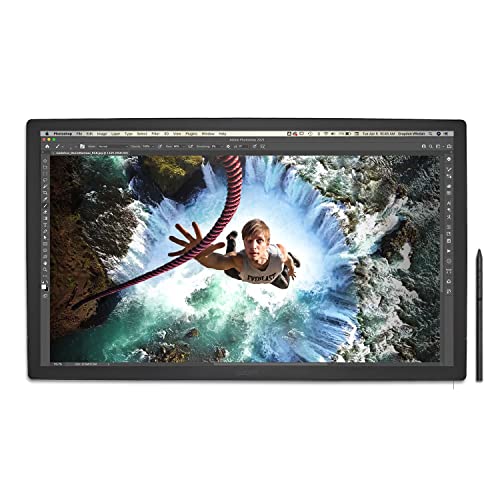
- Featuring 8,192 levels of pressure sensitivity, 3 side switches, and the ability to customize by swapping the included grips or adjusting the weight and center of balance, the Wacom Pro Pen 3 is Wacom’s most advanced pen yet.
- The beautiful 27” display features 4K UHD resolution (3840X2160 pixels), exceptional 10-bit color, 99% Adobe RGB and 98% DCI-P3, and twice the refresh rate of any previous model,120 Hz, allowing the user to be fully immersed in their creation.
- With the conveniently placed 8 customizable ExpressKeys, easy-to-adjust on-screen menus, and improved multi-touch and pen gestures, you can find what works best for you and easily set things up to work the way you want them to.
Pros
-
27″ 4K canvas with up to 120 Hz
-
Wide-gamut, Pantone-validated workflows
-
Pro Pen 3 with customizable grips/weight
-
Mature drivers and studio adoption
Cons
-
Stand is separate; plan a VESA arm
-
Needs a capable GPU and proper cabling
-
Large and heavy for small desks
Trade-offs / Who should skip
If desk space or budget is tight, the 24-inch value option below is easier to fit.
Scores: Performance 5/5 · Pen feel & latency 4.5/5 · Ease of Use 4/5 · Value 4/5
Huion Kamvas Pro 24 (4K) — Best big 4K value
A 23.8″ 4K QLED pen display that balances size, color, and price.
Why it wins: 4K panel with wide gamut and strong contrast; full-laminated anti-glare glass keeps parallax low; Mini KeyDial is included.
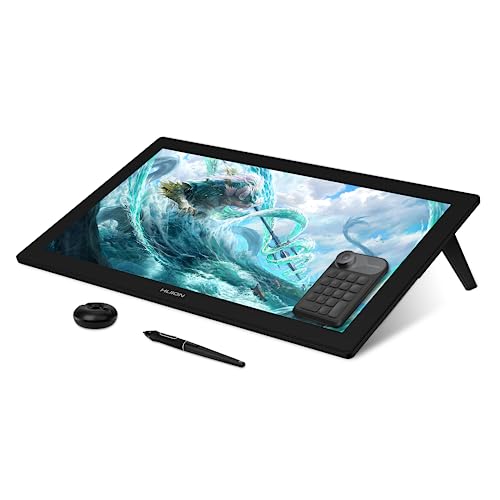
- Pro-level Picture Quality: Enjoy the 4K UHD (3840x2160) resolution in a large 23.8 inch screen, which can effectively reduce the frequency of zoom in and out of the canvas and switch windows to highly increase the efficiency. Combined with full-laminated screen and 178° viewing angle, HUION Kamvas Pro 24 4K monitor can present you with clearer images and more details.
- Precise Color Expression: Featured with industry-leading Quantum Dot technology, Kamvas Pro 24 4K can provide you more natural-looking green, vivider red and deeper black with a stunning 140% sRGB color gamut volume and 1200:1 contrast ratio. Combined with 1.07 billion colors(8bit+Hi-FRC color depth) and HDR technology, it can show you amazing, more life-like color reproduction and ensure professional artists immerse in the creation.
- Upgraded Accessories: Kamvas Pro 24 4K pen display is equipped with a 20° metal integrated stand for drawing assistance. Meanwhile, it has vesa hole on the back for monitor arm(not included). New felt nibs have more stable pen stroke and stronger friction to make the pen more like a real pen. With the included mini keydial you can program your most used shortcuts to make operation more efficient.
Pros
-
Sharp 4K at desk-friendly 23.8″
-
QLED wide gamut; rich contrast
-
Anti-glare etched glass feels
-
Includes dial/shortcut accessory
Cons
-
No touch input
-
Stand/arm may be extra
-
Color not as tight as Cintiq Pro
Trade-offs / Who should skip
If you need Pantone validation or 120 Hz, the Cintiq Pro 27 leads.
Scores: Performance 4.5/5 · Pen feel & latency 4/5 · Ease of Use 4/5 · Value 4.5/5
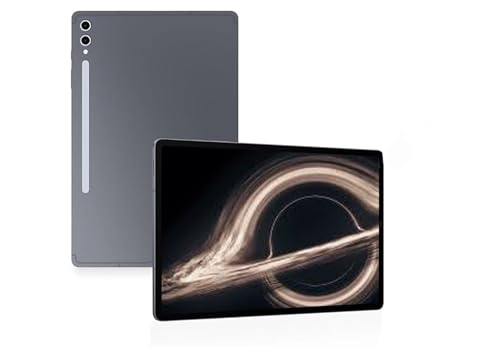
Samsung Galaxy Tab S10 Ultra (14.6″, Wi-Fi) — Best Android tablet for drawing
A huge 14.6″ Dynamic AMOLED 2X canvas; S Pen is in the box with low-latency inking and an anti-glare screen option.
Why it wins: Big screen + included S Pen deliver a ready-to-draw portable rig with strong Android art apps.
Pros
-
14.6″ canvas; 120 Hz AMOLED
-
S Pen included; low latency
-
Good multitasking for references
-
Solid battery life for travel
Cons
-
Hefty for handheld sketching
-
Android app depth trails iPad
-
Accessories vary by region
Trade-offs / Who should skip
If you live in Procreate, the iPad ecosystem still wins.
Scores: Performance 4.5/5 · Pen feel & latency 4/5 · Ease of Use 4/5 · Value 4/5
Wacom Intuos Pro (2025), Medium (PTK670K0A) — Best no-screen tablet for desk setups
The classic “look-up, draw-down” workflow with Wacom’s newest Pro Pen 3 and refined shortcuts.
Why it wins: Ultra-thin Bluetooth tablet with Pro Pen 3 customization and rock-solid drivers; pro-line warranty support.

- WACOM’S BEST PEN TECHNOLOGY: Pro Pen 3 offers amazing precision, 8192 pressure levels, tilt support & lag-free tracking for smooth, precise strokes; choose slim, straight or flared grip, adjust balance & button layout for precision and comfort
- DIAL INTO PRODUCTIVITY: Speed up and stay in the creative flow with 10 customizable tablet ExpressKeys & 2 mechanical dials conveniently located at the top of the tablet and close to your keyboard for efficiency
- DESIGNED FOR MODERN MONITORS: With a versatile 16:9 format perfect for multiple monitors and wide displays; medium size has a large active area with a small footprint 11.4 x 8.1” / 291 x 206 mm
Pros
-
Pro Pen 3: swappable grips/weights
-
ExpressKeys + dials streamline work
-
Light, durable, easy to pack
-
Works with Windows/macOS
Cons
-
No built-in screen
-
Learning curve for eye-hand coord
-
Multi-touch is absent on this line
Trade-offs / Who should skip
If you need on-screen cursor alignment, choose a pen display instead.
Scores: Performance 4/5 · Pen feel & latency 4/5 · Ease of Use 4/5 · Value 4/5
Quick compare
-
iPad Pro 13 (M4) — Best for most: elite OLED + Pencil Pro; iPadOS limits desktop plug-ins.
-
Wacom Cintiq Pro 27 — Best studio display: 27″ 4K, up to 120 Hz, wide gamut; needs strong GPU/stand.
-
Huion Kamvas Pro 24 (4K) — Best 4K value: big QLED color; no touch; stand/arm optional.
-
Galaxy Tab S10 Ultra — Best Android: 14.6″ AMOLED + S Pen included; heavier than iPad.
-
Wacom Intuos Pro (2025) — Best no-screen: latest Pro Pen 3; needs an external monitor, no touch.
Buying guide
Standalone tablet vs. pen display
-
Want portability + couch sketching + Procreate? Choose a standalone tablet (iPad Pro + Pencil Pro).
-
Need Photoshop/Illustrator, color-critical work, or 3D? Choose a pen display (Cintiq Pro 27 for best color/refresh; Kamvas Pro 24 4K for value).
-
Prefer a calibrated monitor and ergonomic desk setup? Go no-screen (Intuos Pro).
Screen size & texture
-
13–14″ excels for portability; 24–27″ shines for detailed painting and full tool palettes. Etched/anti-glare glass improves control and reduces reflections.
Color and refresh
-
For print/film pipelines, target wide-gamut (Adobe RGB/DCI-P3) and consider 120 Hz if you do fast gestural work—Cintiq Pro 27 leads here.
Pens & features
-
Apple Pencil Pro: squeeze, barrel-roll, hover, haptics.
-
Wacom Pro Pen 3: customizable grips/weight/buttons; battery-free EMR.
Ports, power, cabling (pen displays)
-
For stable 4K color work (and especially high refresh), confirm your GPU outputs and cabling match the display’s requirements (DisplayPort/HDMI per vendor guidance).
Warranty
-
Pro-line pen displays and tablets typically include multi-year limited warranties in the US; details vary by model.
FAQs
Q: iPad-style tablet vs. Cintiq-style display—what feels better?
A: Both feel excellent. iPad Pro’s 120 Hz OLED plus Pencil Pro gestures make it frictionless for illustration on the go; Cintiq Pro 27 offers a larger, calibrated, up-to-120 Hz desktop canvas for color-critical work.
Q: Do I need 4K?
A: At 24–27″, 4K keeps brushes/textures crisp and leaves room for palettes. At 13–14″, refresh rate and latency usually matter more than raw resolution.
Q: Will these work with Clip Studio Paint, Photoshop, etc.?
A: Yes—iPad has dedicated mobile versions; Windows/macOS pen displays and pen tablets use full desktop apps with mature drivers from Wacom/Huion.
As an Amazon Associate, I earn from qualifying purchases.